World clocks
World clocks keeps the time in the places you work with in a strip under the toolbox: your team, your customers, the server's region.
Using it
- Turn the tool on: Settings > Toolbox, switch on World clocks (it is off by default).
- Open the toolbox and click the globe.
- Search a city or a country and click it to add its clock. Click it again to remove it. You can pick up to ten.
- Press Esc or click the globe to close the list. The clocks show in a strip under the bar, and the globe shows how many there are.
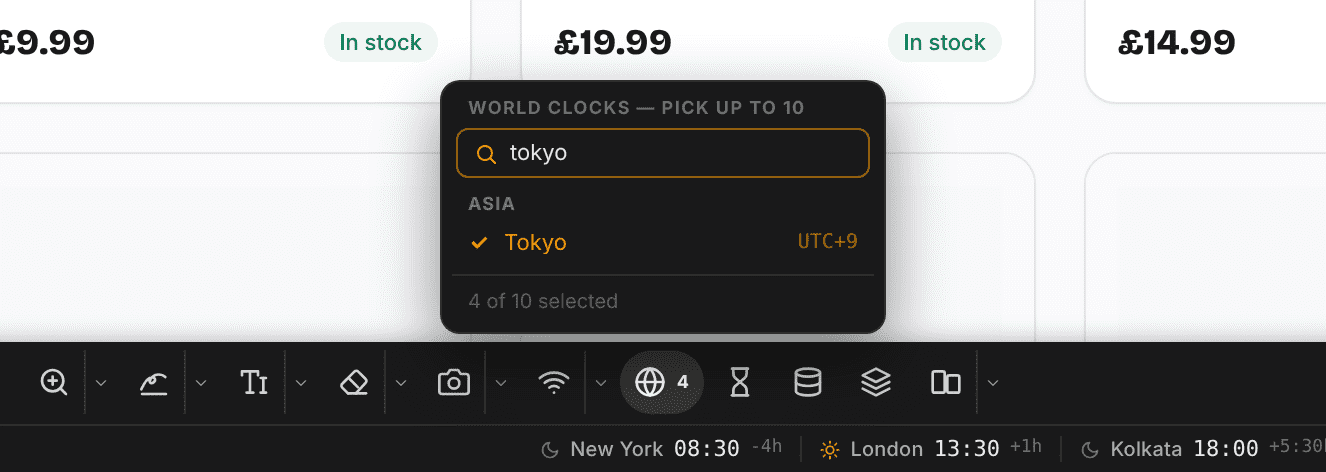
Example: four offices at a glance
With New York, London, Kolkata and Tokyo picked, the strip gives each city's time and how far it is from the page's
own time. +1d means it is already tomorrow there, and the moon says the office is closed.

Good to know
- A sun means working hours (9:00 to 18:00) in that city, a moon means outside them.
- Differences are measured against the time the page sees. With a Time zone override in force, they follow it.
- Your cities are the same on every tab and every site.
Give feedback about the toolbox
Missing something in world clocks? Tell us how you use them.
Give feedbackNeed something else? Request a feature