Marker pen
The marker pen lets you draw freehand over the page: circle a bug, underline a number, point at a misaligned button, then take a screenshot or share your screen.
Using it
- Open the toolbox and click the pen.
- Draw on the page with the mouse, a trackpad or a stylus.
- Pick another ink (red, orange, yellow, green or blue) or a shape (pen, square, circle or arrow) from the arrow next to the pen. Picking either also takes the pen out.
- Click the pen again, or press Esc, to put it away. That clears every mark.
Shapes
With a square, circle or arrow picked, drag from one corner (or the arrow's tail) to the other. Hold Shift for an even square or a round circle.
Undo and redo
While the pen is out, Cmd/Ctrl+Z undoes the last stroke and Shift+Cmd/Ctrl+Z (or Ctrl+Y) brings it back. The same two steps are in the History rows of the menu next to the pen.
Example: circle the wrong price
The first product's price should show its discount. One loop around it says so faster than a paragraph in a ticket.
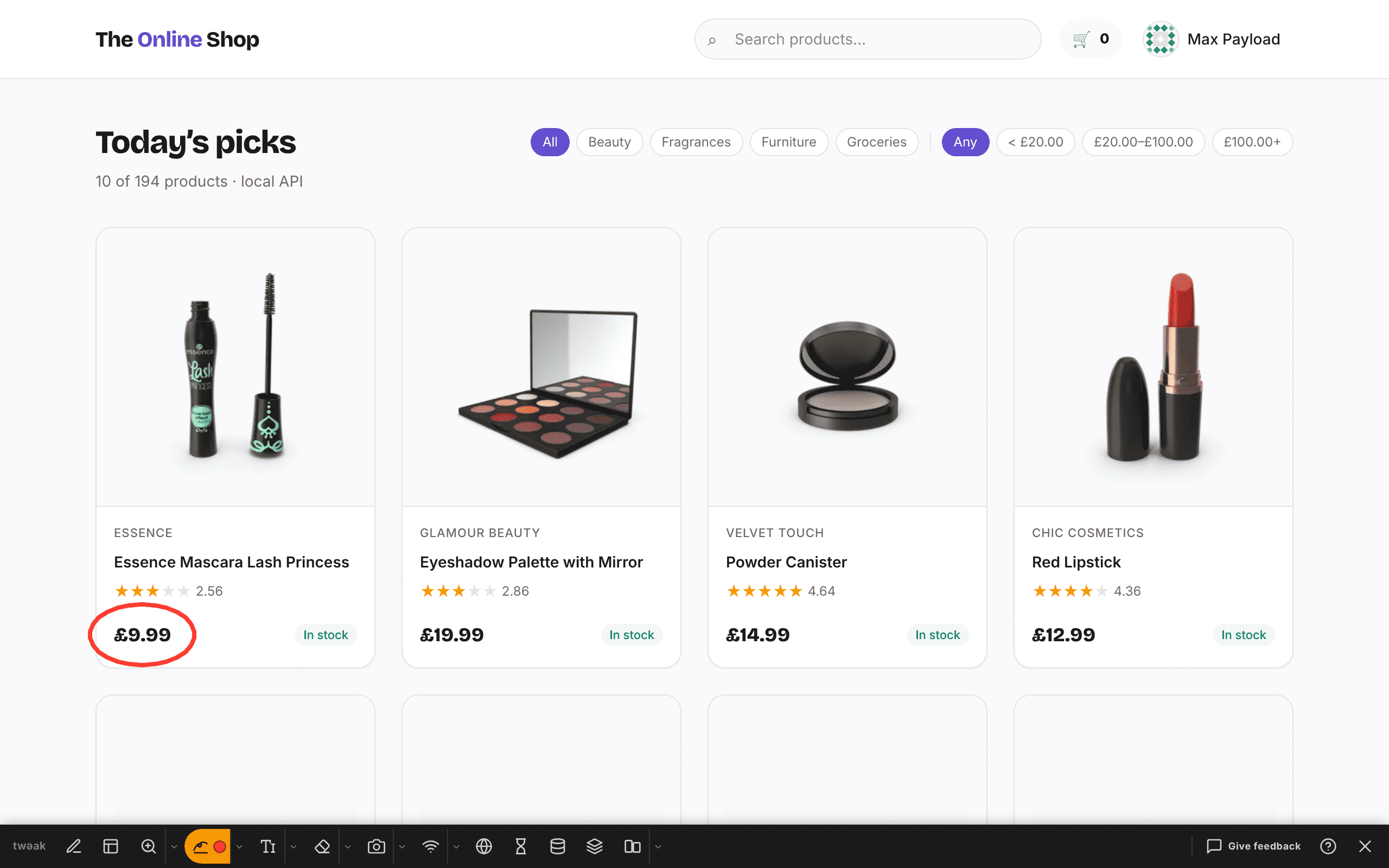
Add a label next to it with the text tool, then save both with the screenshot tool.
Good to know
- Marks stick to the page: a circle around a price scrolls away with the price.
- Putting the pen away clears every mark and its history.
- Switching to the text tool keeps your marks, so a circle and its label can be drawn in turns.
- Screenshots include the marks.
Missing something in the marker pen? Tell us what you were trying to point out.
Give feedbackNeed something else? Request a feature