Introduction
In a nutshell tweak acts as a customizable API mock server within the browser. It lets you easily mock HTTP requests by setting rules that capture and modify them. When an outgoing request matches your rules, the extension rewrites the request and returns a mocked response.
Quick start
To get started quickly, watch this short video.
Tour
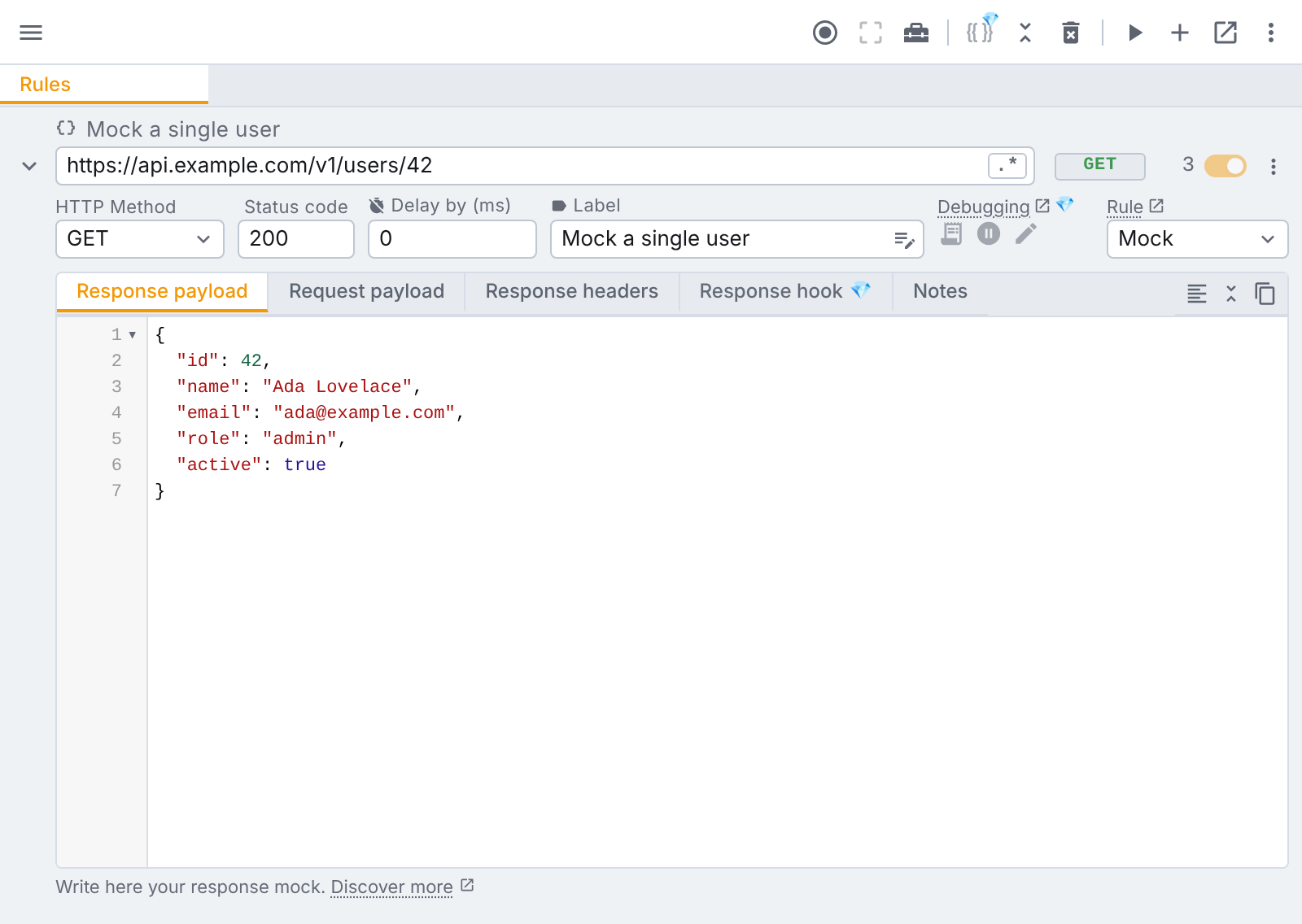
The below image is interactive ✨ Hover and click the specific elements to learn more about them.
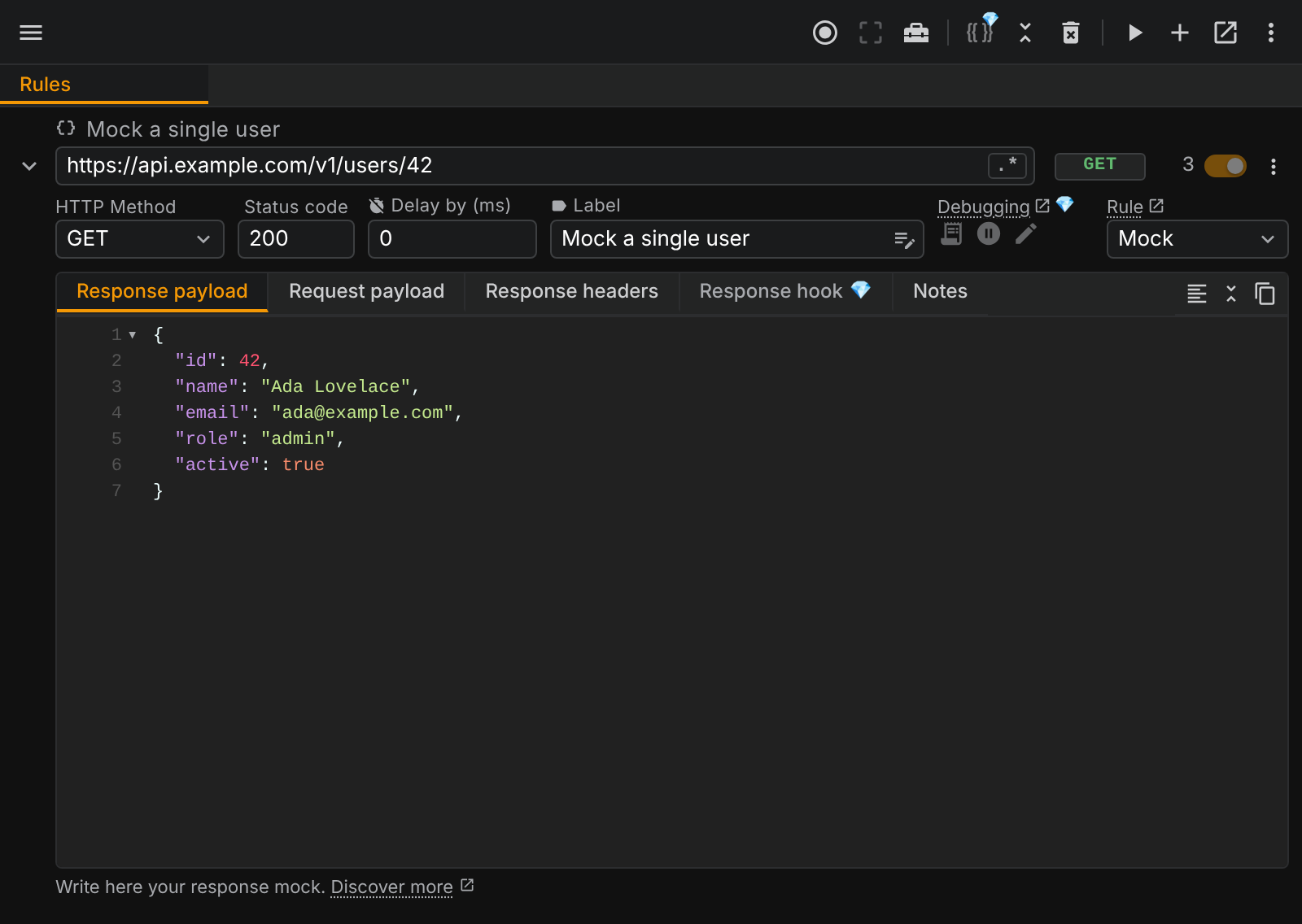
Here is what the extension looks like.
Global settings
The toolbar at the top of the popup, from left to right:
- Menu : your plan, sign in and upgrade, read more in upgrade and sign in.
- Request capture on/off : records the requests of the current tab so you can search them from a rule's URL field, read more about request capture.
- Data X-Ray: select a region of the page to see the requests behind it, read more about Data X-Ray.
- Developer Toolbox : opens the toolbox on the page, read more about the Developer Toolbox.
- Variables: values you reuse across rules (only available on Tweak Max), read more about variables.
- Collapse all rows: minimizes all the rows.
- Delete all: deletes all the rules and the captured requests. Trigger the requests you want to search in the URL field again in the browser tab.
- Play/Pause the extension: click on the play button when you are ready to start intercepting requests. You can also achieve this through a shortcut. From the moment you activate the extension all active rules are enforced on that browser tab.
- Create a new rule: adds a new empty rule.
- Open in floating window: see floating window and browser tab.
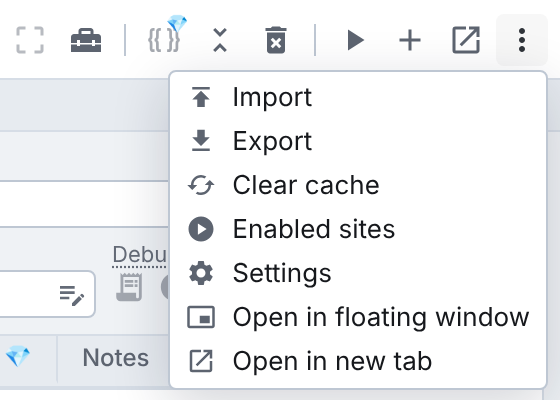
- More options: import, export, enabled sites and the settings.
Below the toolbar, the tab strip lists your rules. On Tweak Basic and Tweak Max it holds your collections.
Import/export
You can use the export functionality to save rules. You can later on import the same rules into some other browser or device, or share them with a colleague.
Read more here about import/export with Collections, on Tweak Basic and Tweak Max.
Floating window and browser tab
From the toolbar's more-options menu you can pop tweak out of its default popup into a standalone, resizable browser window, or into a browser tab of its own. Both are handy when you want to keep the extension visible side by side with the page you're working on, instead of it closing every time you click away. Either one stays pinned to the tab it was opened from, and says so in a badge at the top.
While one of them is open it is the tweak UI: clicking the extension icon (or using its keyboard shortcut) brings that document to the front rather than opening a second popup. Close it to get the regular popup back. You can also hand the icon to one of them, so it opens there every time.
Read more about the three modes, and tell us how you would want them to work, in Where tweak opens.
URL and label
The URL field is a critical piece of a tweak rule. Here's how URL request matching works in tweak:
- String partial matching (default) is applied by default, meaning that if you type
/v1/userin the URL field, and the following HTTP requests take place://api.com/v1/user/123,//api.com/v1/user/456, both requests are matched. For example//api.com/v2/user/123would not match. - Regular expression toggle, when enabled at the rule level, the extension considers the input of the URL a regular expression, meaning that if you type
.*/v1/user/[1]\d\d$in the URL field, the following HTTP requests//api.com/v1/user/123,//api.com/v1/user/173, are matched. - Imports cURL when pasting command. You can paste a full
cURLcommand in this field and the extension will autofill a rule by capturing all the relevant parameters from thecURLcommand.
When writing a description under the label text field it will be reflected on top of the URL input field. This will allow you to quickly differentiate the various rules you might have in the extension, since it's visible even if the rule is collapsed.
The label understands inline markdown: **bold**, _italic_, ~~strike~~, `code` and
[links](https://example.com), up to 256 characters. A link opens in a new tab. See
notes.
Notes
Every rule has a Notes tab, for markdown documentation that travels with the rule. See notes.
Regular expression toggle
As mentioned above ☝️, when toggled on, you can specify a regular expression to match against the request URL. Don't worry about typos, we will give you instant feedback on whether your regular expression is valid or not.
HTTP method
The method a request must use for the rule to match it. Pick * to match every method. The
badge next to the URL repeats it, so it stays visible when the rule is collapsed.
Number of requests intercepted
The number of requests intercepted by a given row is reflected in the counter near the activation toggle. This serves only as an indicator, it can also help you understand how many times that request was triggered by the page. Additionally, when intercepting requests the timestamp of the last request intercepted by a given row is displayed in the counter tooltip.
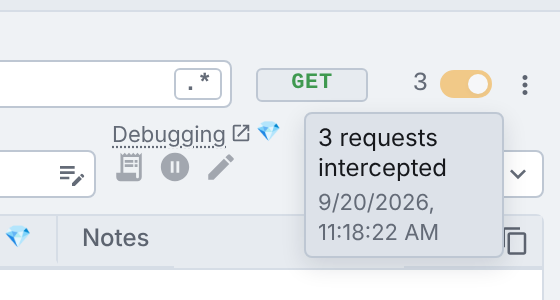
If you're seeing the 0 value after trying to intercept a request it means that you might have a mismatch on your rule. Double check the request URL and the selected HTTP method to ensure everything is ok.
Rule switch
Turns one rule on or off without deleting it. A rule that is off is ignored, even while the extension is running.
More options & actions
Certain actions to manipulate rules such as delete or duplicate a rule can be accessed through this icon. The actions are:
- Delete a rule
- Duplicate a rule
- Move a rule to the top of the panel
- Move a rule to the bottom of the panel
- Move a rule to a different collection (available on Tweak Basic and Tweak Max)
Debugging
The three icons under Debugging log or pause the requests the rule matches:
- Logpoint: logs each matched request to the page's console. The enhanced logpoint, with payloads and headers, is available on Tweak Basic and Tweak Max
- Breakpoint: pauses the page's debugger on each matched request (available on Tweak Basic and Tweak Max)
- Pause & Edit: holds the request so you can edit it before it is sent (only available on Tweak Max)
Read more in debugging requests.
Status code
Write here the HTTP status code you want for your response. Here's a detailed guide on how to use this field.
Delay
In this field you can introduce artificial delays on the resolution of a given request(s). We wrote this blog post to explain this feature in detail.
For streaming responses (Server-Sent Events or
Transfer-Encoding: chunked), the delay is applied between each chunk rather than once before the response resolves. This lets you simulate realistic streaming behavior, such as slow token-by-token output.
Editor area
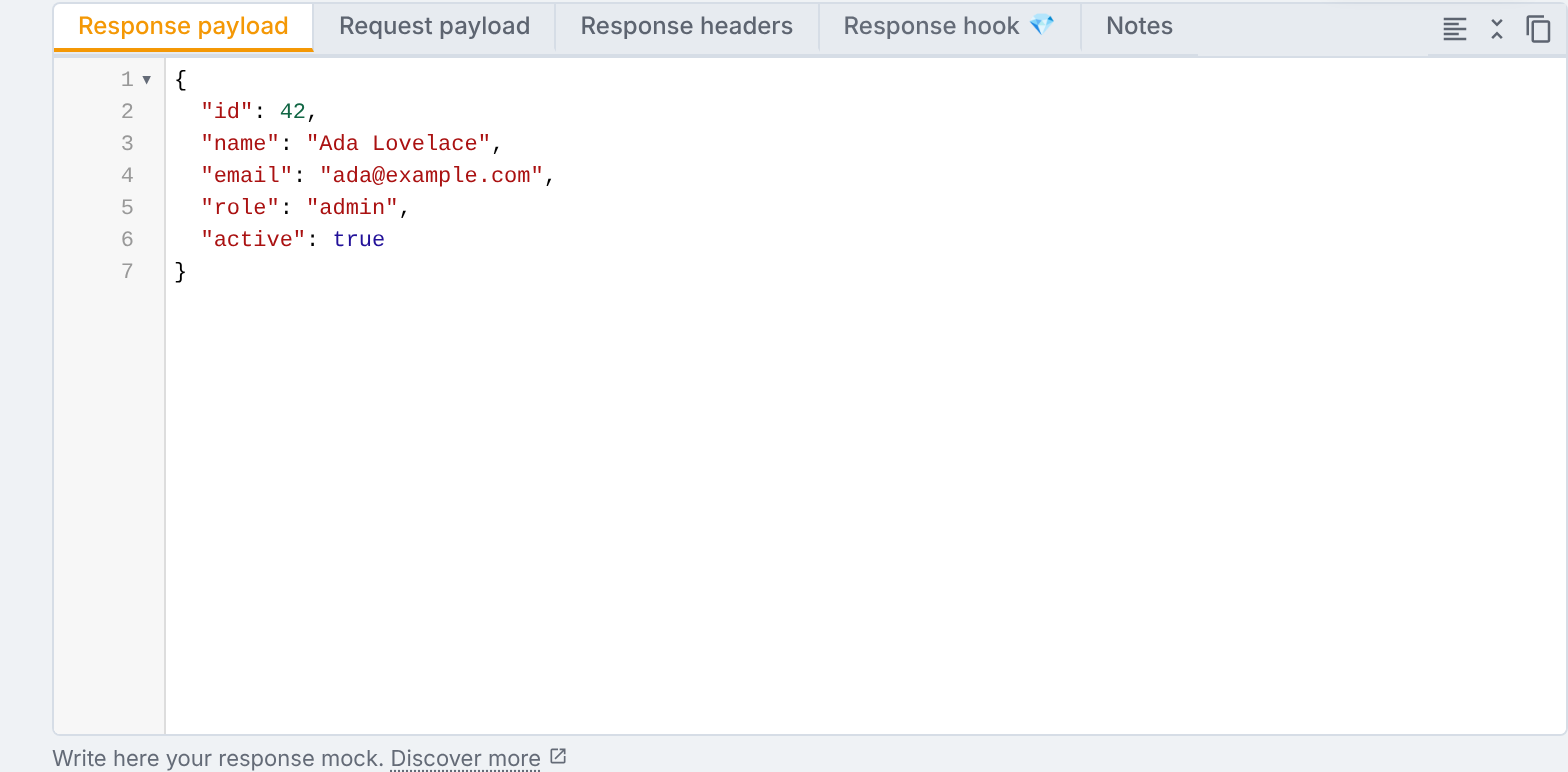
In this area you can specify the following:
- Response payload
- Request payload
- Response & request headers
- Response hook and request hook (only available on Tweak Max)
- Notes: what the rule is for, in markdown
Supported languages
The response payload editor adapts to the content-type header under the response headers tab. Here are the supported types:
- JSON - most of the times, developers deal with JSON data. If the
content-typeisapplication/json, the JSON language will be enabled in the editor. Furthermore, tweak only serializes/deserializes mock data in JSON when provided thecontent-type: application/json. Because this is the most common data type, it is the default value when you create a new rule. - JavaScript - for cases where the
content-typecontainsapplication/javascript, the JavaScript language support is enabled for a better experience. - For all other use cases, the editor falls back to plain text (e.g.
content-typevalue set totext/plainor others).
Need something else? Request a feature