Layout outlines
Layout outlines draws a thin outline around every element on the page, so you can see the boxes behind the design: where padding ends, which wrapper is too wide, why two things do not line up.
Using it
- Open the toolbox and click the layout icon (the second button).
- Every element gets an outline. The colour says what kind of element it is, so a heading, a link and a plain wrapper are told apart at a glance.
- Click the button again to remove the outlines.
Example: the boxes of a product grid
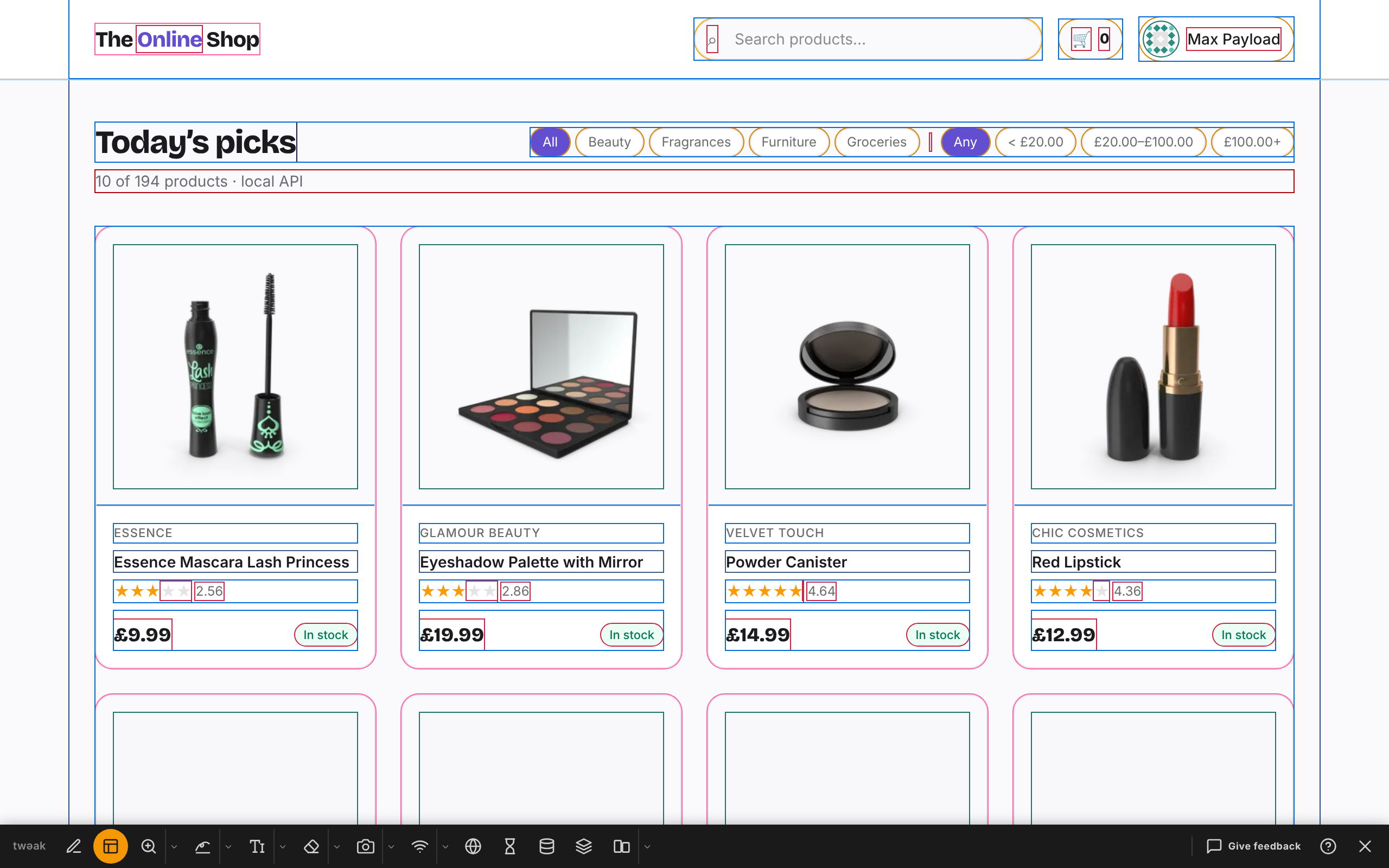
With outlines on, the shop's grid shows its structure: the card, the photo's frame inside the card's padding, and one box per line of text.
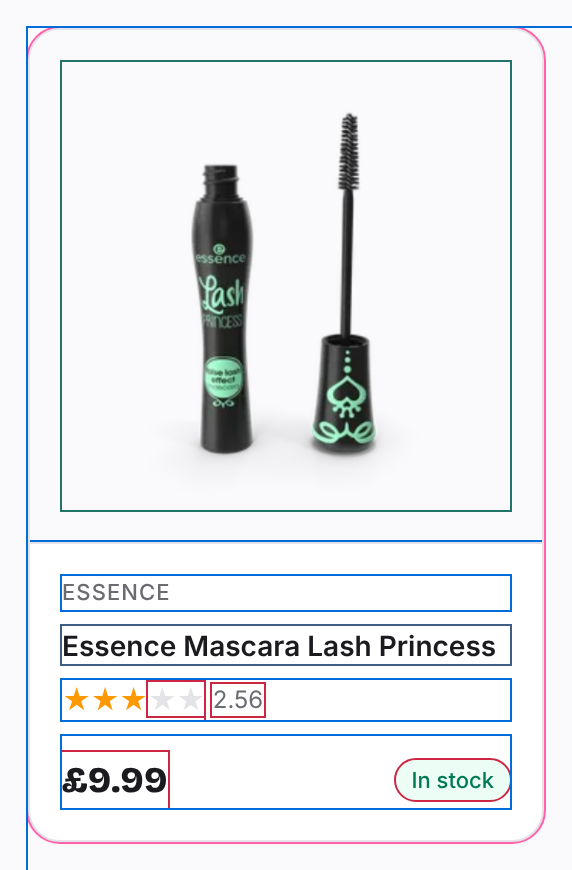
Up close, a single card shows that the rating and its number are two boxes, and that the In stock chip sits in the same row as the price:
Good to know
- Outlines take no space, so the layout you see is the real one.
- They stay on after a reload of the tab until you switch them off or close the toolbox.
Give feedback about the toolbox
Missing something in layout outlines? Tell us what you needed to see.
Give feedbackNeed something else? Request a feature